Viewing Ticket Status
This guide provides step-by-step instructions for clients to check the status of their support tickets on the ED Partners Africa Helpdesk.
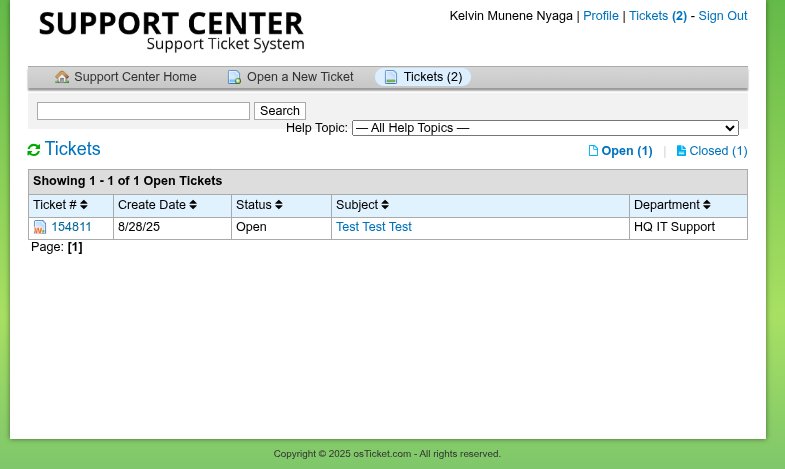
Step 1: Access Your Ticket Dashboard
- After logging in, you will be taken to your Client Dashboard
- Look for the section labeled:
- "My Tickets" or "View Tickets"
- Click on it to see a list of all your submitted tickets
Step 2: Review Your Ticket List
You will see a table or list showing the following details for each ticket:
- Ticket Number: e.g., HD-12345 (save this for reference)
- Subject: Brief summary of your request
- Status: Current state of the ticket
- Last Updated: Date and time of the most recent activity
Step 3: Check Ticket Status Definitions
Understanding the status of your ticket:
🔹 Open
- Your ticket has been received and is under review
- The support team is working on it or will respond shortly
- Action needed: Wait for agent response
🔹 Answered
- An agent has replied to your ticket
- Awaiting your response or confirmation
- Action needed: Click on the ticket to read the response and reply if needed
🔹 Closed
- Your issue has been resolved
- No further action is required (unless you reopen)
- Action needed: None, unless you need to reopen
🔹 Overdue
- The expected response or resolution time has passed
- Your ticket may be escalated for urgent attention
- Action needed: Contact support if urgent
Step 4: View Individual Ticket Details
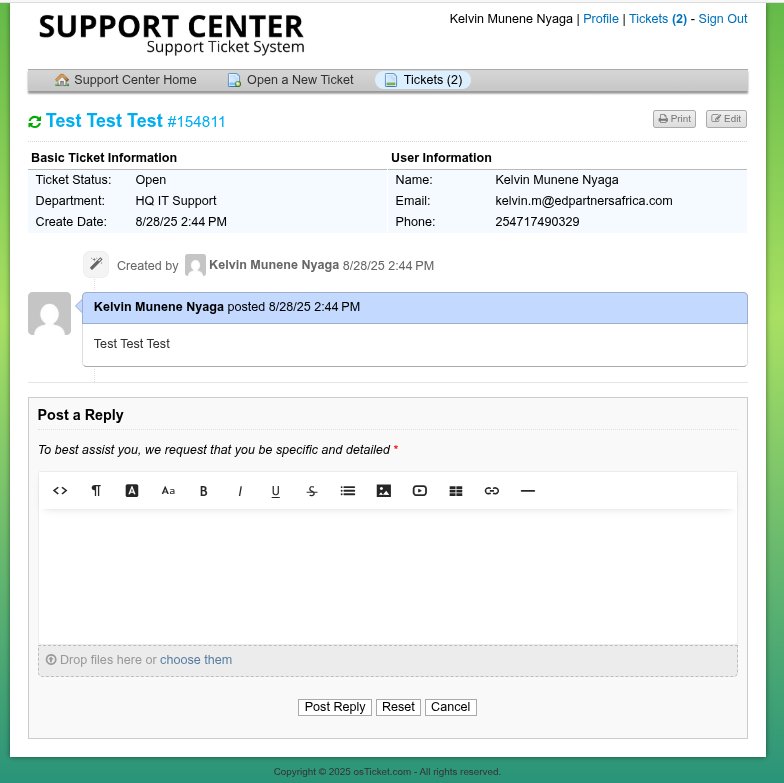
To see more details about a specific ticket:
- Click on the ticket number or subject in your ticket list
- You will see the complete ticket conversation including:
- Your original message
- All agent responses
- Your replies
- File attachments
- Activity timestamps
- Current status
Understanding Ticket Priority
Tickets may also have priority levels that affect response time:
| Priority | Description |
|---|---|
| 🔴 Emergency | System down, critical business impact |
| 🟡 High | Significant impact, workaround available |
| 🟢 Normal | Standard requests, minor issues |
| ⚪ Low | Enhancements, general questions |
Priority is usually assigned by the support team based on your help topic and description. You cannot directly set priority as a client.
Status Change Notifications
You will be notified of status changes through:
Email Notifications
- Sent to your registered email address
- Include ticket number and brief update
- May include the agent's response
Dashboard Updates
- Status changes reflected immediately in your ticket dashboard
- "Last Updated" timestamp shows when changes occurred
Always check your spam/junk folder for ticket notifications, especially if you're expecting a response.
What Each Status Change Means
Open → Answered
- A support agent has reviewed your ticket
- They've provided a response, solution, or asked for more information
- Your turn: Read the response and reply if needed
Answered → Open
- You've replied to the agent's response
- The ticket is back in the agent's queue for review
- Wait: The agent will review your reply and respond
Open/Answered → Closed
- The support team believes your issue is resolved
- You can still reopen if the issue persists
- Check: Verify the solution worked before accepting closure
When to Take Action Based on Status
If Status is "Answered"
- Click on the ticket to read the agent's response
- Follow any provided instructions
- Reply with results or ask follow-up questions
- Confirm if the issue is resolved
If Status is "Closed" But Issue Persists
- Click on the closed ticket
- Add a reply explaining that the issue is not resolved
- The ticket will automatically reopen
- Provide additional details about the ongoing problem
Tracking Multiple Tickets
If you have several tickets:
Use the Ticket List View
- Sort by status to see which need your attention
- Look for "Answered" status first (these need your response)
- Check "Last Updated" to see which are most recent
Keep Records
- Note down ticket numbers for important issues
- Save important responses or solutions
- Track which tickets are related to each other
Common Status Scenarios
Scenario 1: New Ticket
Created → Open → Answered → Closed
Normal flow: ticket created, agent responds, issue resolved
Scenario 2: Complex Issue
Created → Open → Answered → Open → Answered → Open → Closed
Back-and-forth conversation to resolve complex problem
Scenario 3: Reopened Ticket
Closed → Open → Answered → Closed
Issue returned, additional work needed
Getting Help with Status Questions
If you're confused about your ticket status:
- Check the ticket conversation for the latest agent message
- Look for specific instructions in agent responses
- Reply to the ticket asking for clarification
- Contact support if urgent
Next Steps
Now that you understand ticket status: