Password Recovery
If you have forgotten your password for the ED Partners Africa Helpdesk, you can reset it using the built-in password recovery feature.
Follow the steps below to regain access to your account.
Step 1: Go to the Helpdesk Login Page
- Open your web browser and go to: https://helpdesk.edpartnersafrica.com
- Click on "Sign In" in the top right corner of the page
- This will take you to the login form
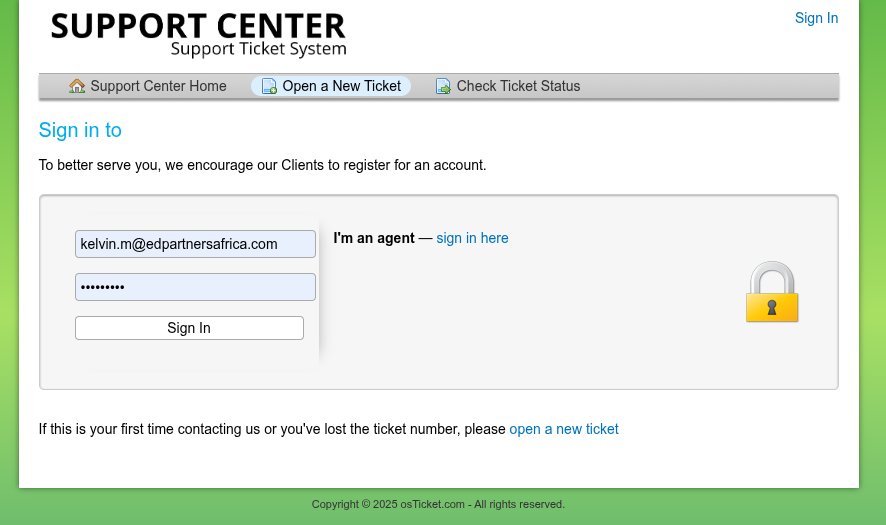
Step 2: Click on "Forgot Your Password?"
- On the login page, try logging in with a password you remember
- If it fails, look for the link labeled: "Forgot your password?"
- Click on it
Try First
Always try logging in with passwords you remember before using the reset feature.
Step 3: Enter Your Email Address
- On the password reset page, enter the email address associated with your account
- This should be the same email used during account registration
- Click the "Send Reset Link" button
Step 4: Check Your Email Inbox
- Open your email client (Gmail, Outlook, etc.)
- Check your inbox for a message from:
- ED Partners Africa Helpdesk or
- helpdesk@edpartnersafrica.com
- Subject line may be:
- "Password Reset Request" or
- "Reset Your Helpdesk Password"
Check Spam Folder
🔍 If you don't see the email in your inbox, check your Spam or Junk folder.
Step 5: Reset Your Password
- Click the password reset link in the email
- You will be redirected to a secure page to create a new password
- Enter a strong password that you haven't used before
- Confirm the password and submit
✅ Your password will be updated immediately.
Password Requirements
Create a strong password that includes:
- At least 8 characters
- Mix of uppercase and lowercase letters
- Numbers and symbols
- Avoid using personal information
- Don't reuse old passwords
Step 6: Log In with Your New Password
- Return to: https://helpdesk.edpartnersafrica.com
- Click "Sign In"
- Enter your username (email) and your new password
- Click "Sign In" to access your account
Important Notes
Security Tips
🔐 Use a strong password with a mix of uppercase, lowercase, numbers, and symbols
Account Issues
📧 Account Not Recognized?
- The email you entered may not be registered
- Contact helpdesk@edpartnersafrica.com to confirm your account exists
Reset Link Problems
⏳ Reset Link Expired?
- The link is valid for 24 hours
- If expired, repeat the process to request a new one
⚠️ Link Not Working?
- Copy and paste the full URL into your browser
- Try using a different browser
- Contact support if issues persist
Alternative Recovery Methods
If the automated password reset doesn't work:
-
Contact Support Directly
- Email: helpdesk@edpartnersafrica.com
- Subject: "Password Recovery Assistance"
- Include: Your registered email address and full name
-
Provide Identity Verification
- Be prepared to verify your identity
- Provide information from your account registration
Next Steps
After successfully recovering your password: