Creating Tickets
This guide provides step-by-step instructions for clients to create a support ticket on the ED Partners Africa Helpdesk.
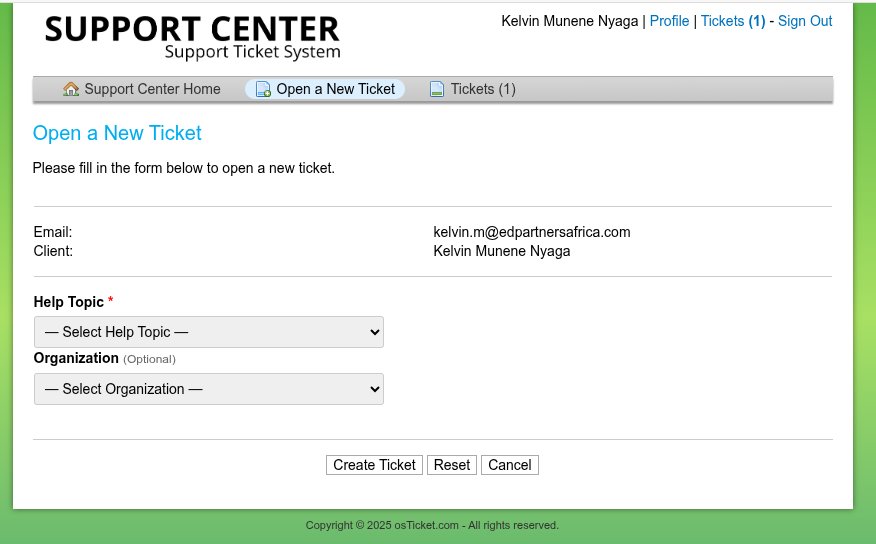
Step 1: Go to the Helpdesk Portal
- Open your web browser (Chrome, Firefox, Edge, Safari)
- Visit the official helpdesk page: https://helpdesk.edpartnersafrica.com
Step 2: Start a New Ticket
- Look for the link or button that says "Open a New Ticket"
- Click on it to begin the ticket creation process
- If you are not logged in, you will be redirected to the Login page
- Enter your Username (or email) and Password
- Click "Sign In" to continue
- If you are already logged in, you will go directly to the ticket form
Step 3: Fill in the Ticket Form
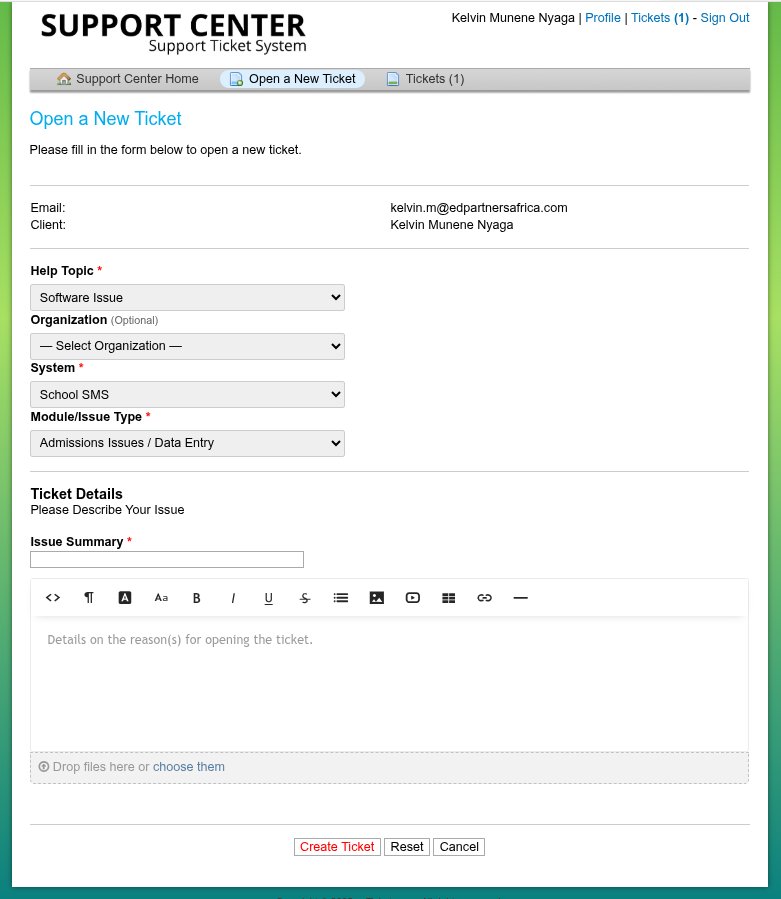
Complete all required fields (marked with a red asterisk *):
a) Full Name
Enter your full name as registered with ED Partners Africa
b) Email Address
Use the email address linked to your account
c) Help Topic
Select the most relevant category, such as:
- General Request
- Hardware Issue
- Software Issue
This ensures your ticket reaches the right team
d) System / Hardware Name / Sub-Topic
Depending on your selected Help Topic, additional options may appear.
Example: If reporting a login issue, you may select:
- Help Topic: Software Issue
- System: Qore Banking
- Module/Issue Type: Authentication & Account Management
e) Subject
Write a clear and concise summary
Examples:
- "Unable to Access Qore Banking System"
- "Request for User Permission Upgrade"
- "Printer Not Responding in Accounting Office"
f) Issue Description
Provide detailed information, including:
- What happened?
- When did it start?
- Any error messages? (Copy exactly)
- Steps you've already tried
- Is the issue affecting only you or others?
Example:
I cannot log in to the Qore Banking System since this morning.
Error message: 'Authentication failed'.
I have restarted my computer and tried two different browsers.
This affects only my account.
Step 4: Upload Evidence (Screenshots, Files, etc.)
Supporting evidence helps resolve your issue faster.
To attach a file:
- Scroll to the Attachments section
- Click "Choose File" or drag and drop files into the box labeled: "Drop file here or ( choose them )"
- Select your file(s) from your computer
- Supported formats: .jpg, .png, .pdf, .docx, .xlsx
- Maximum file size: 5MB per file
You can attach files when:
- Creating a new ticket
- Replying to an existing ticket
Learn more in our Uploading Evidence guide.
Step 5: Submit Your Ticket
- Review all information for accuracy
- When ready, click the "Create Ticket" button
After submission:
- You will see a confirmation page with your Ticket Number (e.g., HD-10485)
- Save this number – it is your reference for all future communication
- You may receive a confirmation email
What Happens Next?
- Your ticket is assigned to the appropriate support team
- An agent will review and respond via the portal or email
- You will be notified of updates
- You can reply anytime by logging in and viewing your ticket
Tips for Success
✅ Be specific and accurate in your description
✅ Include exact error messages
✅ Attach screenshots of issues
✅ Use the same email for follow-ups
✅ Check your spam/junk folder for replies
Next Steps
After creating your ticket:
- Submit the Ticket
- Click "Create Ticket"
- You'll receive a confirmation with your ticket number
- Save the ticket number for future reference
Example Web Form Submission
Help Topic: Technical Support
Subject: Unable to access my account dashboard
Priority: Normal (auto-assigned)

Message:
Hello,

I'm having trouble accessing my account dashboard. When I try to log in,
I get an error message saying "Invalid credentials" even though I'm sure
my username and password are correct.

I last accessed my account successfully on Monday. Nothing has changed
on my end, but I noticed the issue started yesterday.

Can you please help me resolve this?

Browser: Chrome 118
Operating System: Windows 11
Error Screenshot: [attached]

Thanks,
John Doe
After Creating a Ticket
What Happens Next
-
Automatic Confirmation
- Email confirmation sent to your address
- Contains ticket number and basic details
-
Ticket Assignment
- Routed to appropriate department/agent
- May be auto-assigned based on help topic
- Priority level determined by rules/help topic
-
Initial Response
- Acknowledgment from support staff
- May include additional questions
Tracking Your Ticket
Via Email
- All updates sent to your email address
- Reply to emails to add information
- Email subject will contain ticket number
Via Web Portal (if registered)
- Log into your account
- View "My Tickets" or "Ticket History"
- See real-time status updates
- Add replies and attachments
Ticket Number Reference
- Format:
#123456orTICKET-ABC123 - Include in all communications
- Required for phone inquiries
Best Practices for Creating Tickets
✅ Do This
-
Be Specific and Clear
✅ "Unable to generate monthly sales report in Customer Portal,
    getting 'Data not found' error when selecting March 2024"

❌ "Reports not working" -
Include Relevant Details
- Operating system and browser
- Error messages (exact text)
- Steps to reproduce the problem
- Screenshots if helpful
-
One Issue Per Ticket
- Create separate tickets for different problems
- Easier to track and resolve
- Better for reporting and metrics
-
Use Appropriate Priority
- Reserve "High" priority for actual urgent issues
- Consider business impact and timing
❌ Avoid This
-
Vague Descriptions
- "It's broken"
- "Doesn't work"
- "Need help"
-
Multiple Issues in One Ticket
- Mixing different problems
- Unrelated requests
-
Excessive Urgency
- Marking everything as "High" priority
- Creating duplicate tickets
-
Missing Information
- No contact details
- Insufficient problem description
- No steps to reproduce
Common Ticket Types and Examples
Technical Support
Subject: Website displays error 500 on checkout page
Priority: High
Help Topic: Technical Support

Our e-commerce website is showing a "500 Internal Server Error"
on the checkout page. Customers cannot complete purchases.

- Started: Today around 2:00 PM EST
- Affects: All users on checkout step 3
- Last successful order: This morning at 11:30 AM
- No recent changes made to the site

Server error logs attached.
Account Issues
Subject: Cannot access account - forgot password reset not working
Priority: Normal
Help Topic: Account Support

I forgot my password and used the reset link, but the new password
isn't working. I've tried the reset process three times with the
same result.

- Account email: user@example.com
- Last successful login: One week ago
- Error: "Invalid username or password"
- Browser: Chrome 118 on Windows 11
Billing Questions
Subject: Question about charges on invoice #INV-2024-0315
Priority: Normal
Help Topic: Billing

I received invoice #INV-2024-0315 and have a question about the
"Premium Support" charge of KES 150.

I don't recall signing up for premium support. Could you please
explain what this charge is for and provide details about when
this service was added to my account?

Account: john.doe@company.com
Invoice date: March 15, 2024
Feature Requests
Subject: Request - Add bulk export feature to reports module
Priority: Low
Help Topic: Feature Request

Could you consider adding a bulk export feature to the reports module?
Currently, I need to export each report individually, which is
time-consuming when generating monthly summaries.

Suggested implementation:
- Checkbox selection for multiple reports
- Single "Export Selected" button
- Combined CSV or PDF output

This would save significant time for users who generate regular reports.
Troubleshooting Ticket Creation
Common Issues
"Invalid Email Address" Error
- Check email format:
user@domain.com - Avoid special characters in local part
- Ensure domain is valid
"Help Topic Required" Error
- Select a help topic from the dropdown
- Contact admin if no appropriate topics exist
File Upload Failures
- Check file size limits
- Use supported file types
- Try compressing large files
CAPTCHA Problems
- Refresh the page and try again
- Ensure JavaScript is enabled
- Try a different browser
"Duplicate Ticket" Warning
- Check if you already submitted a similar request
- Wait a few minutes before resubmitting
- Contact support if you believe this is an error
Getting Help with Ticket Creation
If you can't create a ticket through normal methods:
-
Alternative Email
- Try emailing a general support address
- Use a different email account if needed
-
Contact Administrator
- Reach out through other communication channels
- Report technical issues with the ticket system
Mobile Ticket Creation
Mobile Web Interface
- Our Helpdesk is mobile-responsive
- Use the same process as desktop
- Consider shorter messages due to typing constraints
Mobile Tips
- Take photos directly with your device camera
- Use voice-to-text for longer descriptions
- Save ticket numbers in your notes app
- Set up email notifications for updates
Integration and API Tickets
For developers and system integrators, tickets can be created via API check out our API documentation:
Next Steps
After creating your first ticket: