Replying to Tickets
This guide provides step-by-step instructions for clients to reply to a support ticket on the ED Partners Africa Helpdesk.
Step 1: Go to Your Tickets
- After logging in, you will be taken to your Client Dashboard
- Click on "My Tickets" or "View Tickets" to see a list of all your submitted tickets
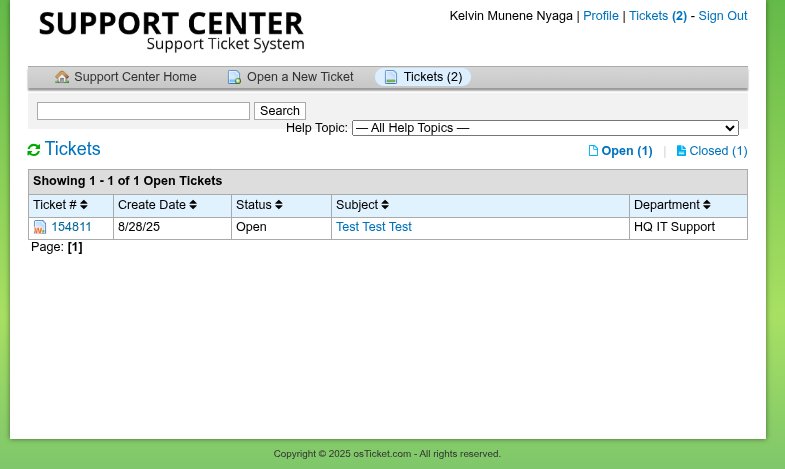
Step 2: Open the Ticket You Want to Reply To
- Find the ticket you wish to respond to (e.g., Ticket #HD-12345)
- Click on the Ticket Number or Subject to open the full conversation
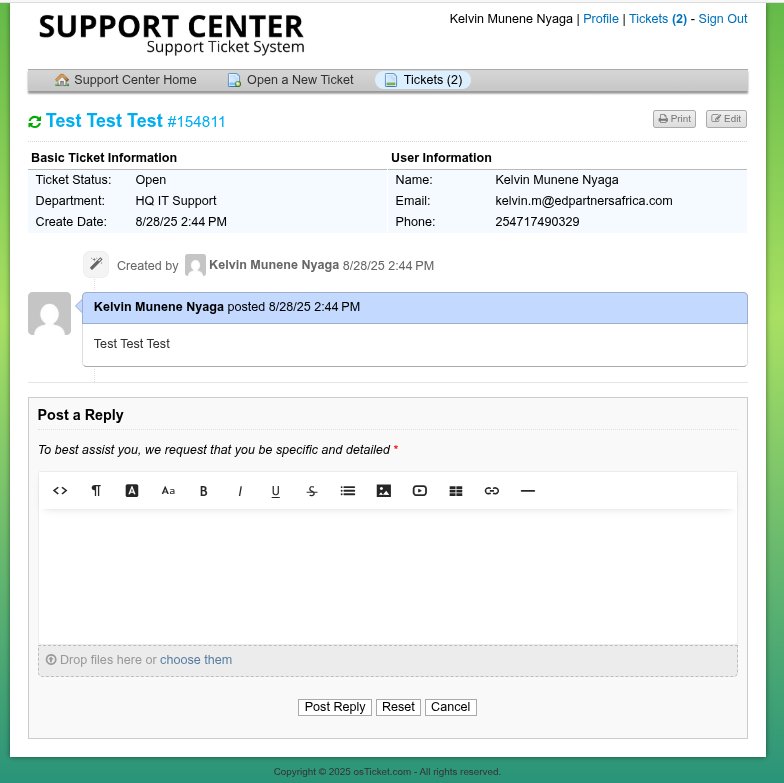
- You will see:
- Your original message
- Any responses from the support team
- Timestamps of all activity
- Current ticket status (Open, Answered, Closed)
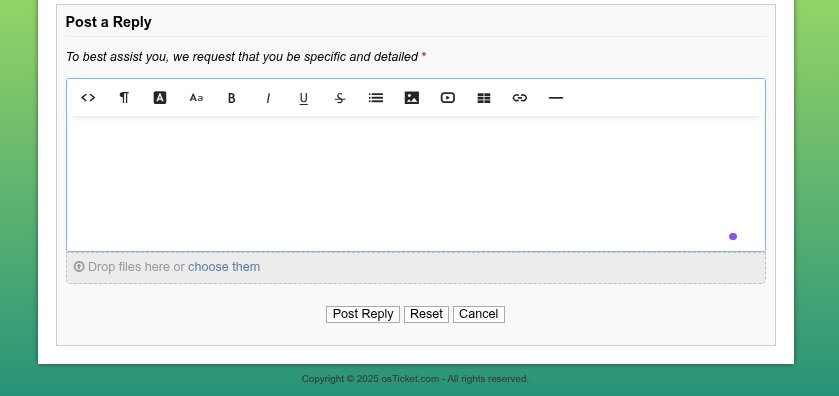
Step 3: Write and Submit Your Reply
-
Scroll down to the bottom of the page to the "Add a Reply" section
-
Type your response in the message box
- Be clear and include any new details
- If answering a question from the agent, address each point
-
Optional: Attach a file (e.g., updated screenshot, document):
- Click "Choose File" or drag and drop into the box labeled: "Drop file here or ( choose them )"
- Select the file from your device
- Supported formats: .jpg, .png, .pdf, .docx, .xlsx
- Max size: 5MB per file
-
When ready, click the "Post Reply" button
After You Reply
Once you submit your reply:
✅ Confirmation: You'll see a confirmation message that your reply was posted
✅ Email Notification: The support agent will be notified of your response
✅ Status Update: The ticket status may change to "Answered" (awaiting agent response)
✅ Tracking: Your reply becomes part of the permanent ticket conversation
Best Practices for Replies
Be Clear and Specific
- Address all questions from the support agent
- Provide step-by-step details if describing a process
- Include exact error messages if new ones appear
Use Proper Formatting
- Use bullet points or numbers for multiple items
- Break up long text into paragraphs
- Quote specific parts of the agent's message when responding
Include New Information
- Mention if the problem has changed or evolved
- Report if suggested solutions worked or didn't work
- Add any new symptoms or error messages
Example Good Reply
Hi [Agent Name],

Thank you for your response. I tried the steps you suggested:

1. ✅ Cleared browser cache - completed
2. ✅ Restarted computer - completed
3. ❌ Still cannot access Qore Banking System

New details:
- Now getting a different error: "Connection timeout"
- This started happening after the network maintenance yesterday
- Other users in my office are experiencing the same issue

I've attached a screenshot of the new error message.

Please let me know the next steps.

Best regards,
[Your Name]
When to Reply vs. Create New Ticket
Reply to Existing Ticket When:
- Following up on the same issue
- Providing requested information
- Reporting that a solution worked/didn't work
- The issue is related to the original problem
Create New Ticket When:
- You have a completely different issue
- The original ticket was marked "Resolved" and you have a new problem
- You need help with an unrelated system or process
Troubleshooting Reply Issues
Can't find the reply section:
- Make sure you're logged in
- Check that the ticket isn't closed
- Try refreshing the page
Reply button not working:
- Ensure you've typed a message in the text box
- Check your internet connection
- Try a different browser
File won't upload:
- Check file size (max 5MB)
- Verify file format is supported
- Try a different file or compress large images