Managing Tickets
This comprehensive guide covers the complete lifecycle of support tickets in the ED Partners Africa Helpdesk system, helping you effectively manage your support requests from creation to resolution.
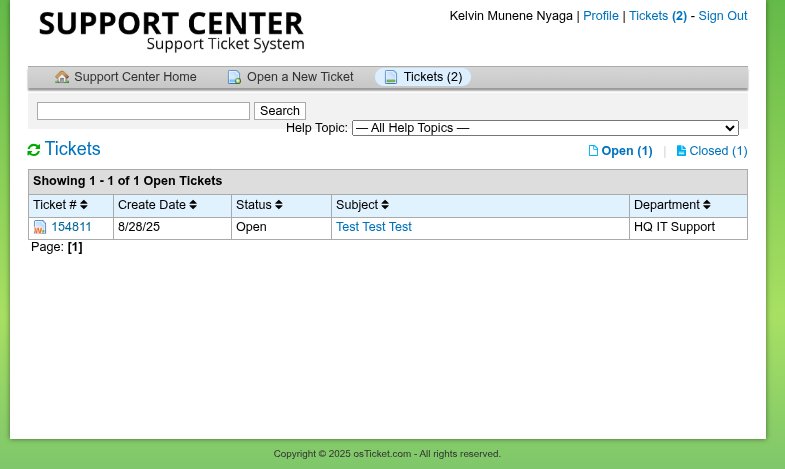
Overview
Effective ticket management involves understanding how to:
- Track ticket progress through different statuses
- Communicate effectively with support agents
- Provide additional information when needed
- Know when and how to follow up
- Handle ticket closures and reopening
Complete Ticket Lifecycle
1. Ticket Creation
- You create a support request
- System assigns a unique ticket number (e.g., HD-12345)
- Status: Open
- Agent: Ticket is routed to appropriate support team
2. Initial Review
- Agent reviews your ticket and supporting evidence
- Agent may request additional information
- Status: Open or Answered
- Your role: Respond promptly to any questions
3. Active Resolution
- Agent works on resolving your issue
- Back-and-forth communication as needed
- Status: Alternates between Open and Answered
- Your role: Test solutions and provide feedback
4. Resolution
- Agent provides final solution or completes request
- Status: Closed
- Your role: Confirm resolution works
5. Follow-up (if needed)
- You can reopen if issue persists
- Status: Returns to Open
- Process repeats until fully resolved | Open | Being actively worked on | Staff member is investigating | | Pending | Waiting for information | Usually waiting for your response | | On Hold | Temporarily paused | May be waiting for external factors | | Resolved | Issue has been fixed | Solution provided, awaiting confirmation | | Closed | Ticket is complete | Issue resolved and ticket archived |
Adding Responses and Information
Via Email (All Users)
- Reply to any notification email
- Include ticket number in subject line (usually auto-included)
- Write your response in plain text or HTML
- Attach files if needed
- Send the email
Via Web Portal (Registered Users)
- Log into your account
- Open the ticket from your ticket list
- Scroll to the response section
- Type your message in the text area
- Attach files using the file upload option
- Click "Post Reply"
Best Practices for Responses
✅ Effective Communication
Subject: Re: Ticket #12345 - Login issues resolved

Thank you for the quick response! I followed your instructions to
clear my browser cache and cookies, and I can now log in successfully.

The password reset process is working correctly now. I appreciate
your help resolving this issue.

Status: This can be closed as resolved.
❌ Avoid These Mistakes
- One-word responses: "Thanks", "OK", "Fixed"
- Starting new topics in existing tickets
- Forgetting to mention if the issue is resolved
Working with Support Staff
Response Expectations
Initial Response Time
- Emergency: 1-2 hours
- High Priority: 4-8 hours
- Normal: 24-48 hours
- Low Priority: 48-72 hours
Times may vary based on your organization's SLA
Follow-up Communication
- Staff may ask clarifying questions
- Provide requested information promptly
- Be patient during complex troubleshooting
Escalation Process
If you're not satisfied with the response:
-
Request priority increase (if justified)
This issue is now affecting our entire team's productivity.
Could this ticket please be elevated to high priority? -
Provide additional context
I think there may be some miscommunication about the scope of
this issue. Let me provide more background...
File Attachments and Screenshots
Uploading Files
Supported File Types (typically)
- Documents:
.pdf,.doc,.docx,.txt - Images:
.jpg,.png,.gif - Archives:
.zip,.rar - Logs:
.log,.csv
File Size Limits
- Usually 2-10MB per file
- Compress large files or use file sharing services
- Multiple files can often be uploaded
Screenshot Best Practices
- Capture the entire error or relevant screen area
- Include browser address bar for web issues
- Show system information if relevant
- Annotate with arrows or highlights if helpful
Example File Attachments
Ticket #12345 - Database connection error

Hi Support Team,

I'm experiencing database connection errors on our application.
I've attached the following files to help with troubleshooting:

1. error_log.txt - Server error logs from the past 24 hours
2. screenshot_error.png - Screenshot of the error message
3. config_sanitized.txt - Application config (passwords removed)

The issue started this morning around 9:00 AM EST.

Thanks,
John Doe
Reopening Closed Tickets
When to Reopen a Ticket
- The original issue has returned
- The suggested solution didn't work
- Related problems have emerged
How to Reopen
Via Email
Reply to the closure notification:
Subject: Re: Ticket #12345 - CLOSED - Login Issues

The login issue has returned. I was able to log in yesterday after
following your instructions, but today I'm getting the same error
message again.

Could you please reopen this ticket? I suspect the fix was temporary.

Error details:
- Same error message as before
- Tried the previous solution again
- Problem persists across different browsers
Via Web Portal
- Find the closed ticket in your history
- Click "Reopen" button (if available)
- Or add a new response explaining why it should be reopened
Alternative: Create Related Ticket
If reopening isn't available:
Subject: Related to closed ticket #12345 - Login issue has returned

This is a follow-up to ticket #12345, which was closed yesterday.
The same login issue has returned, and the previous solution is
no longer working.

Original ticket: #12345 - Login Issues
Closed: Yesterday at 3:00 PM
Previous solution: Clear browser cache (worked temporarily)

Could you please investigate why this issue keeps recurring?
Multiple Tickets and Organization
When to Create Multiple Tickets
- Different problems requiring separate troubleshooting
- Different departments or areas of expertise
- Different priority levels
Referencing Related Tickets
Subject: Network connectivity issues (related to ticket #12340)

I'm experiencing network issues that may be related to the server
maintenance discussed in ticket #12340.

Could you please check if these issues are connected?

Related ticket: #12340 - Server maintenance schedule
Consolidating Related Issues
If you accidentally create multiple tickets for the same issue:
I realize I may have created duplicate tickets for the same issue:
- Ticket #12345: Login problems
- Ticket #12346: Can't access dashboard

These are actually the same problem. Could you please merge these
tickets or close one of them?
Advanced Ticket Management
Ticket Notifications
Configure how you want to receive updates:
- Email notifications for all updates
- SMS alerts for high-priority tickets
Custom Fields and Information
Some tickets may include custom fields:
- Asset tags for hardware issues
- Location information for on-site support
- Project references for development requests
Ticket Templates
For recurring issues, some systems allow:
- Saved response templates
- Quick issue reporting
- Pre-filled forms for common problems
Troubleshooting Ticket Management
Common Issues
Not Receiving Email Notifications
- Check spam/junk folder
- Verify email address in your profile
- Contact IT about email filtering
- Add support domain to safe senders list
Can't Reply to Tickets
- Reply to the original notification email
- Include ticket number in subject
- Check if ticket is closed (may need reopening)
- Try logging into web portal
Lost Ticket Numbers
- Search email for ticket confirmations
- Check "My Tickets" you can follow our Viewing Ticket Status guide
- Contact support with your email and issue description
- Provide approximate dates when ticket was created
Tips for Effective Ticket Management
Organization Tips
- Keep email notifications in a dedicated folder
- Create calendar reminders for following up
- Take notes on complex issues for future reference
- Screenshot solutions for your own knowledge base
Communication Tips
- Be specific about what you tried and what happened
- Provide context about when problems started
- Include relevant details upfront to avoid back-and-forth
- Confirm resolution when issues are fixed
Time Management
- Respond promptly to staff requests for information
- Set realistic expectations about your availability
- Plan for testing time when solutions are provided
- Schedule downtime for maintenance or updates